





Hi there! How can we help you today?
Linux VPS Security: 16 Essential Steps for Beginners
-
Home
-
Hosting & VPS
-
Linux VPS Security: 16 Essential Steps for Beginners (2026)
Linux VPS Security: 16 Essential Steps for Beginners (2026)
A 16-step Linux VPS security checklist: SSH keys, a custom SSH port, disabling root, UFW, Fail2Ban, automatic updates, aaPanel hardening and backups.

Contents
You have just rented a new VPS and finished installing the operating system (Ubuntu or CentOS) and a control panel (such as aaPanel). Do you think your website is now safe on the Internet? Unfortunately, not yet. The harsh reality: within minutes of your VPS going online, automated bots from around the world start scanning it and trying to brute-force your server's password, often thousands of times.
A VPS gives you speed and full control, but in return you are responsible for its security. In this article, TeamDevDesign provides a 16-step Linux VPS security checklist, from the basics to more advanced measures. Start securing your Linux VPS right away to make your server a much harder target in 2026.
1. What is Linux VPS security and why does it matter so much?
Linux VPS security is the process of setting up technical barriers (firewalls, encryption, access control) to protect a Linux virtual server from cyberattacks, data theft, or being hijacked into a botnet or for crypto mining. Unlike Windows Server (where you typically use Remote Desktop and antivirus software), Linux is mainly managed through the command line over SSH, which calls for specific protections such as SSH keys and Fail2Ban.

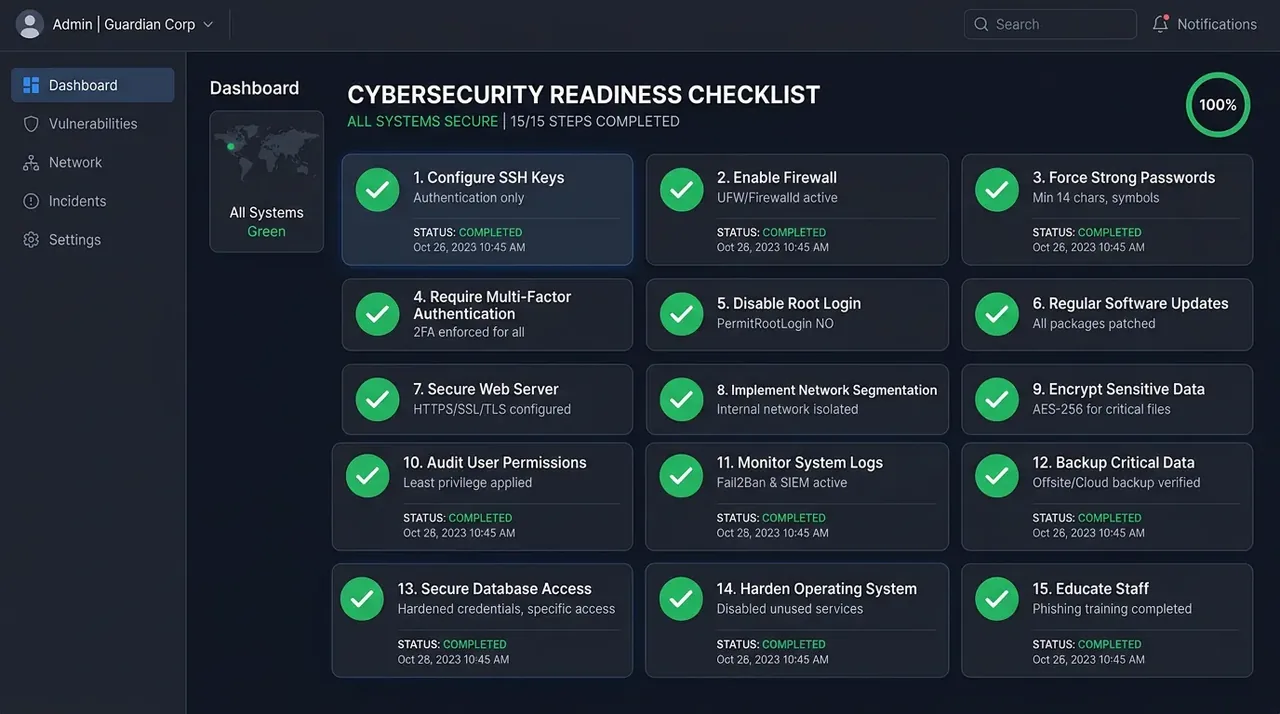
Below are 16 essential steps to take right after creating your server.
2. Basic security (do these right away)
Step 1: Update the operating system to the latest version
Security vulnerabilities (including zero-days) are regularly discovered in operating systems. The first thing to do when you get a VPS is install the latest security patches.
sudo apt update && sudo apt upgrade -yStep 2: Replace the default password with a strong one immediately
Many people keep using the default password the provider (such as VinaHost, Vietnix or DigitalOcean) sent by email. Avoid this! Change the `root` password right away to a complex string (uppercase and lowercase letters, numbers and special characters).
passwd rootStep 3: Create a new user and stop using root
The root account is the top target for attacks because it has the highest privileges and everyone knows its name. Create a separate user (e.g. admin_dev) and give it sudo rights.
adduser admin_dev
usermod -aG sudo admin_dev
From now on, log in as admin_dev. When you need to run a system command, add sudo in front of it.
Step 4: Use SSH keys instead of passwords
No matter how long a password is, it can still be leaked or cracked. SSH key authentication (a public/private key pair) is far stronger. Without the private key file stored on your computer, an attacker cannot log in even if they know the username.

Step 5: Change the SSH port
Automated bots usually only scan SSH's default port 22. Changing the port noticeably cuts down the number of junk login attempts.
Edit the SSH configuration file (sudo nano /etc/ssh/sshd_config), find the line #Port 22, remove the # and change 22 to a random number (e.g. 2289). Don't forget to open this port in the firewall before restarting the SSH service (sudo systemctl restart sshd).
Step 6: Disable root login (PermitRootLogin no)
After you have successfully tested logging in with the new user and SSH key, block root login completely by editing sshd_config: change PermitRootLogin yes to PermitRootLogin no, and PasswordAuthentication yes to no.
⚠️ Warning: Make sure you have an SSH session open with the new user or SSH key before restarting SSH. If the configuration is wrong, you could lock yourself out of the server!
3. Firewall and brute-force protection on a VPS
Step 7: Set up the UFW firewall (Uncomplicated Firewall)
UFW lets you close every door into your VPS and open only the ones you need.
sudo apt install ufw
sudo ufw default deny incoming
sudo ufw default allow outgoing
sudo ufw allow 2289/tcp  # (your new SSH port)
sudo ufw allow 80/tcp    # (Web HTTP)
sudo ufw allow 443/tcp   # (Web HTTPS)
sudo ufw enable
Step 8: Install Fail2Ban, your "gatekeeper"
Fail2Ban automatically monitors log files. If someone enters a wrong password more times than allowed (e.g. 5 times), Fail2Ban automatically bans that IP at the firewall level for a set period (e.g. 1 hour, or permanently).

Installation is simple: sudo apt install fail2ban, then configure it in the jail.local file.
Step 9: Hide your real server IP behind Cloudflare
If your VPS hosts a website, avoid exposing the server's IP publicly. Use Cloudflare in proxied mode (the orange cloud). DDoS traffic then hits Cloudflare's infrastructure first, while your VPS stays hidden behind it.
4. Application-layer security (web server and panel)
If you use aaPanel or another web server stack, take these extra steps:
Step 10: Change aaPanel's login port and URL
As mentioned in the previous article, change the default port (7800/8888) to a random one and configure the Security Entrance (a secret login path).
Step 11: Enable two-factor authentication (2FA) for every admin account
From aaPanel to your WordPress admin accounts, set up 2FA (using an app like Google Authenticator). It is one of the most effective layers of protection against leaked passwords.
Step 12: Configure a WAF (Web Application Firewall)
Use the free Nginx WAF (built into aaPanel) or Cloudflare WAF to block SQL injection and XSS attacks, or to block traffic from countries you don't serve if your website only targets visitors in Vietnam.
5. Operations and system monitoring
Step 13: Disable unnecessary services
The less software running, the lower the risk. Turn off FTP if you don't use it (use SFTP over the SSH port instead). Don't install a mail server if you only use Gmail or an external SMTP service.
Step 14: Enable automatic security updates (unattended-upgrades)
This lets your VPS automatically download and install security patches, including kernel updates, overnight without your intervention.
Step 15: Check the logs regularly
Check the /var/log/auth.log file to see whether anyone is trying to log in to your system, or use a visual monitoring tool such as Netdata.
Step 16: Follow the 3-2-1 backup strategy
However good your security is, disasters can still happen (such as an SSD failure in the data center). Set up a script that backs up your database and source code daily to a separate storage location (such as Google Drive, S3 or your own computer). With backups in place, you can rebuild everything quickly.
Overwhelmed by the technical details? Managing and securing a Linux VPS takes real experience. TeamDevDesign offers a secure, all-in-one server and hosting package. Your website is protected by multiple layers of firewall and security configuration, so you can focus on your business while the technical side is taken care of.
6. Comparison: how is Linux VPS security different from Windows Server?
If you also manage a Windows Server, the security strategy differs noticeably from a Linux environment. Specifically:
- Change the Remote Desktop (RDP) port: Instead of changing SSH port 22 as on Linux, on Windows you change the default port 3389 through the Registry Editor to avoid scans.
- Antivirus software: While Linux is rarely targeted directly by viruses and relies mainly on firewalls, Windows Server SHOULD always run real-time antivirus protection (such as Windows Defender).
- Disable legacy protocols: Turn off the SMB 1.0 file-sharing protocol (exploited in the WannaCry outbreak) on Windows, a risk that does not exist on Linux.
- Lock down the Administrator account: Similar to disabling
rooton Linux, rename it or create a separate account to replace the default Administrator account on Windows.
7. Frequently asked questions (FAQ)
If you forget the SSH port, you can't connect with PuTTY. Use the browser-based console (Console/VNC) provided by your VPS provider to check the sshd_config file again.
Yes, if you type the wrong password more times than allowed. To avoid this, add your home network IP to the ignoreip list in the Fail2Ban configuration.
No. This checklist focuses on protecting access and fixing software vulnerabilities. To defend against DDoS, you also need a network-level protection service such as the Cloudflare proxy in front of your VPS.
8. Conclusion
Securing a Linux VPS is not a one-off task but an ongoing maintenance process. Still, if you complete all 16 steps in the Linux VPS security checklist above, your server will be well protected against the large majority of automated vulnerability scans circulating on the Internet today.
Once your VPS is secure, the next step is performance tuning. Continue with the article How to optimize a VPS for WordPress to load in under 1 second from TeamDevDesign to get the most out of your server!
Contents
Related Posts

Hosting & VPS
Hosting vs VPS: Which Is Right for Your Business Website?
An in-depth comparison of shared hosting and VPS on performance, security, scalability and cost, to...

Hosting & VPS
How to Optimize Your VPS for a Fast WordPress Site
A practical guide to optimizing a VPS for WordPress: tune PHP-FPM, enable OPcache and Redis, and adj...

Hosting & VPS
How to Install WordPress on an aaPanel VPS: Point Your Domain and Set Up SSL
Step-by-step guide to installing WordPress on an aaPanel VPS: point your domain, create the site and...