





Hi there! How can we help you today?
How to Optimize a VPS for a Fast WordPress Site (2026)
-
Home
-
Hosting & VPS
-
How to Optimize Your VPS for a Fast WordPress Site
How to Optimize Your VPS for a Fast WordPress Site
A practical guide to optimizing a VPS for WordPress: tune PHP-FPM, enable OPcache and Redis, and adjust MySQL settings in aaPanel to speed up load times.

Contents
A WordPress website on a VPS can be extremely fast, but it can also be painfully slow if you keep every setting at its default. Unlike shared hosting, where the provider has already configured everything, a VPS gives you full control, which also means you have to set up caching and fine-tune the technical parameters yourself.
In this article, TeamDevDesign shares a top-to-bottom process for optimizing a VPS for WordPress. We will work directly with Nginx, PHP-FPM and MySQL, and install Redis Object Cache to help your website aim for a high Google PageSpeed score and handle more traffic each day.
1. Why Do Default VPS Settings Slow WordPress Down?
When you have just installed WordPress on an aaPanel VPS, the default Nginx and PHP settings are usually designed to "run on any hardware", not to "run as fast as possible".
WordPress is a dynamic CMS. Every time someone visits, it has to run PHP scripts and connect to MySQL to fetch posts, theme and plugin data before returning HTML to the browser. This process uses a lot of CPU and RAM. Without caching, a 2GB RAM VPS can crash with as few as around 100 concurrent visitors.
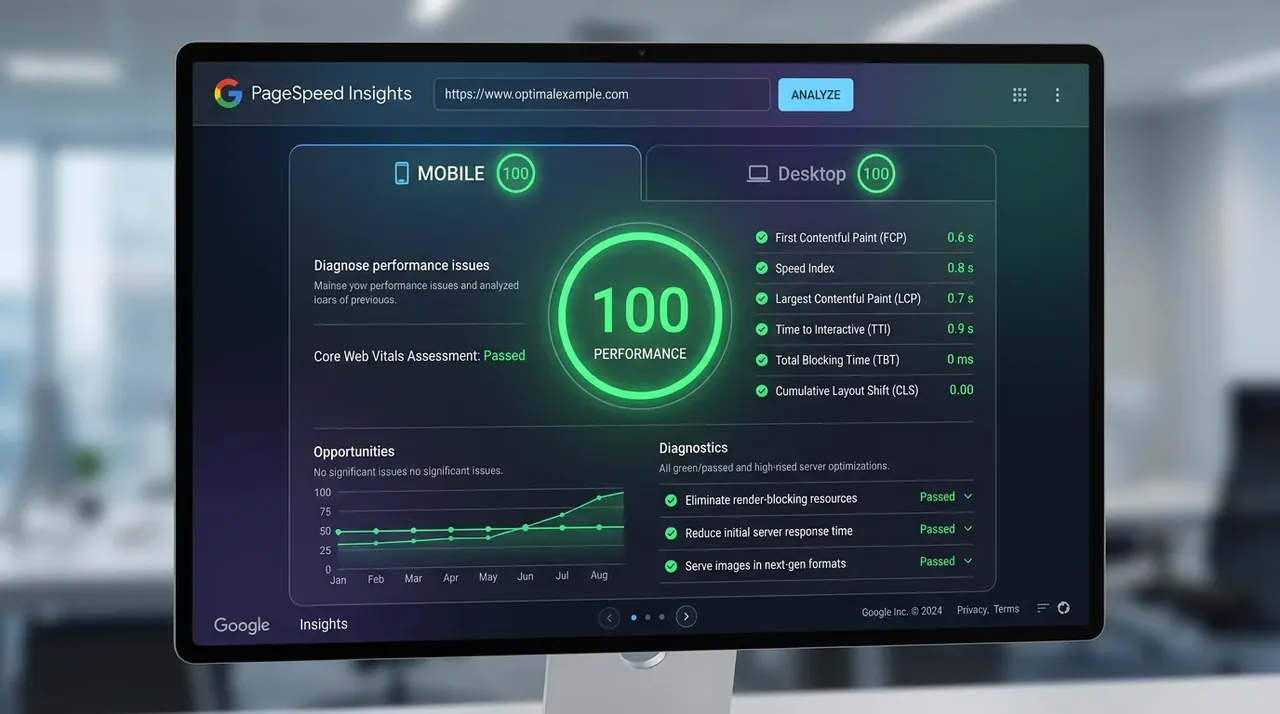
2. Optimizing PHP-FPM: The Processing Heart of WordPress
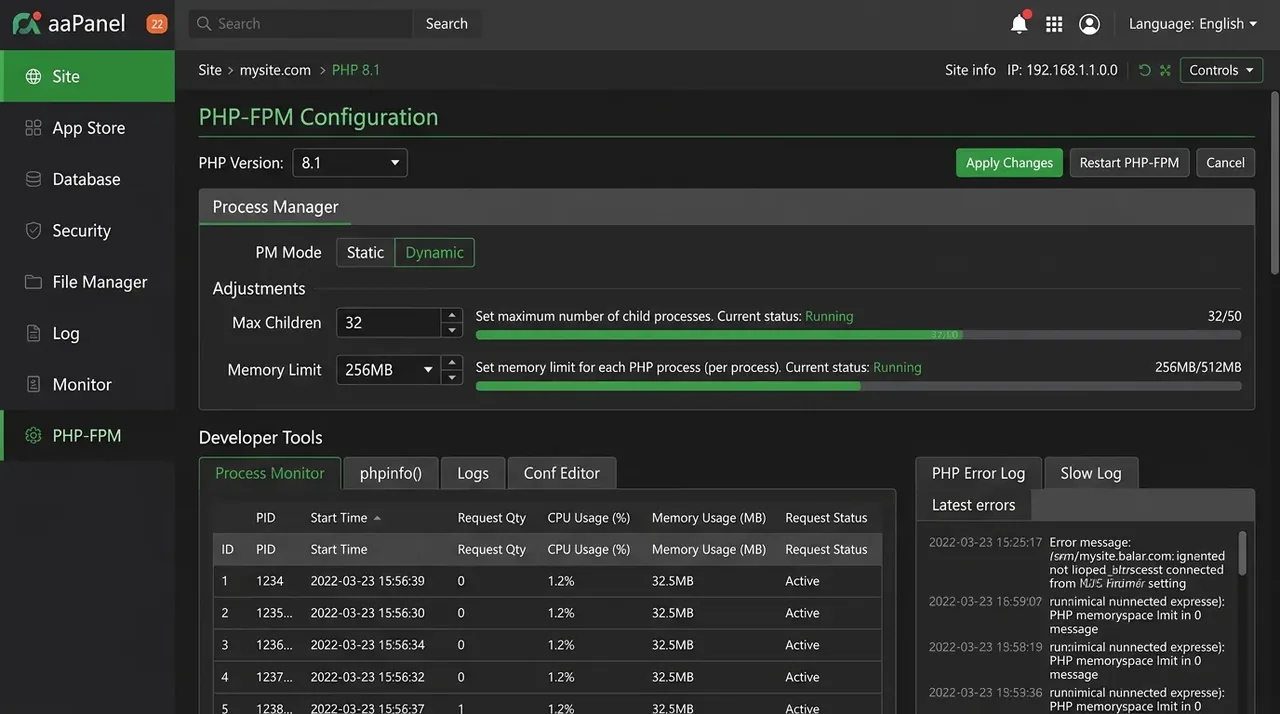
PHP-FPM (FastCGI Process Manager) is the component that executes WordPress's PHP code. To optimize it, you need to adjust the number of "workers" that handle requests based on how much RAM your VPS has.
Configuration in aaPanel:
- Open aaPanel and go to the App Store menu.
- Find the PHP version you are using (e.g. PHP 8.1) and click Setting.
- Switch to the FPM-Tuning tab.
- Under Optimization Plan, aaPanel offers presets based on RAM (such as 1GB, 2GB, 4GB, 8GB). If your VPS has 2GB RAM, choose 2-4GB.
- Click Save to apply the changes.
Optimizing OPcache for PHP
OPcache stores compiled PHP scripts in RAM, so subsequent requests do not have to recompile the source code from disk.
- In the PHP settings window, switch to the Install extension tab.
- Find the opcache extension and click Install.
- Switch to the Configuration tab and add the following lines to the end of the file if they are not there yet:
opcache.enable=1 opcache.memory_consumption=128 opcache.interned_strings_buffer=8 opcache.max_accelerated_files=10000 opcache.revalidate_freq=60 - Restart PHP (Service tab -> Restart).
3. Optimizing the MySQL / MariaDB Database
By default, MySQL is very conservative with memory. If your VPS has 2GB of RAM or more, give MySQL more RAM (especially the InnoDB Buffer Pool) to speed up database queries.
In aaPanel:
- Go to App Store -> MySQL/MariaDB settings.
- Switch to the Optimization tab.
- Choose the Optimization Plan that matches your available RAM (for example: 1-2GB or 2-4GB).
- Click Save.
4. The Big One: Installing Redis Object Cache
If OPcache speeds up PHP, Redis speeds up data retrieval from MySQL. Redis keeps the results of frequent queries in RAM. The next time WordPress needs that data (such as the site menu or a list of posts), it can fetch it straight from RAM in a few milliseconds instead of asking MySQL, which can take hundreds of milliseconds.
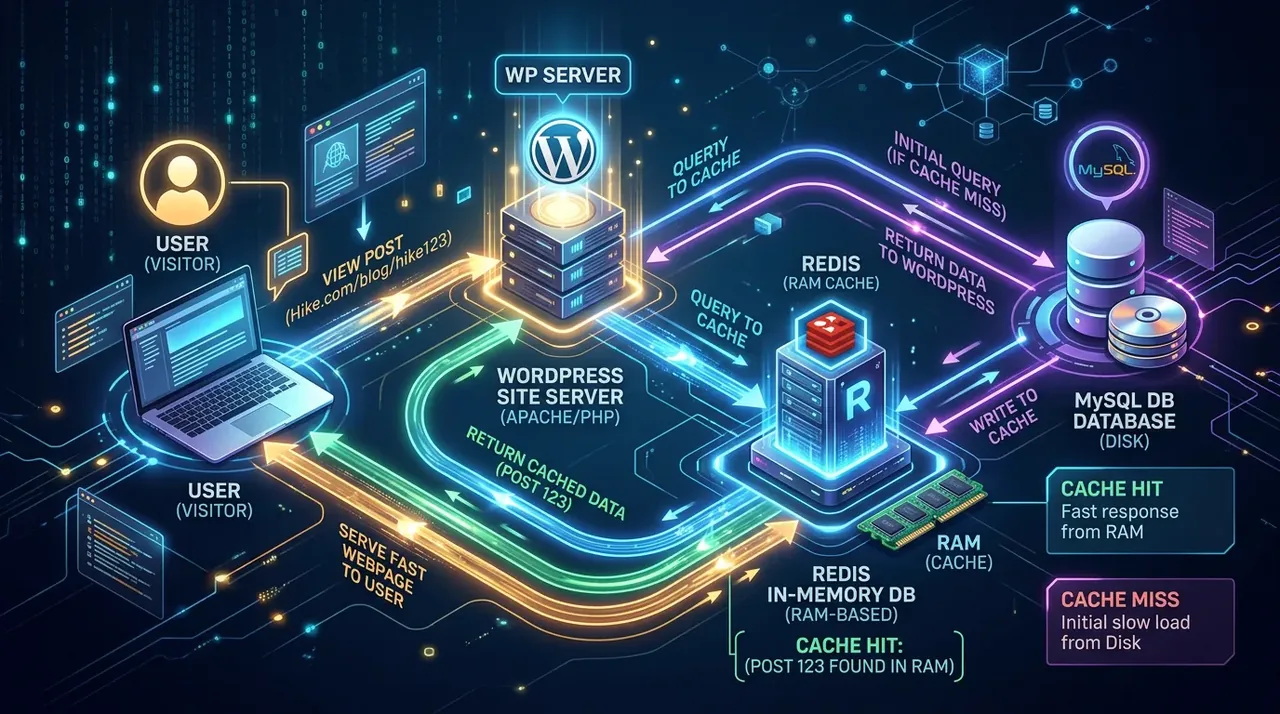
Steps to install Redis:
- Go to aaPanel -> App Store -> find Redis and click Install.
- Once the Redis server is installed, you need the PHP connector extension. Open the PHP settings, go to the Install extension tab, find redis and click Install. Then restart PHP.
- Log in to your WordPress dashboard (WP-Admin).
- Install and activate the Redis Object Cache plugin (by Till Krüss).
- Open Settings -> Redis and click Enable Object Cache. If the status turns to a green Connected, you are done!
💡 Page caching tip for Nginx: You can use the LiteSpeed Cache (LSCache) plugin (even on Nginx, some of its features still work well) or WP Rocket together with Redis to make your website noticeably faster. If this feels too complex, TeamDevDesign's Full Website Speed Optimization service works toward a green score (90–100) on Google PageSpeed for your site.
5. Automatic Image Optimization on the Server (WebP)
One of the most common causes of a slow website is oversized images (JPG/PNG). Instead of compressing images by hand, you can set up your VPS to automatically convert them to the modern WebP format.
- Install the WebP Express plugin or use the image optimization features of LiteSpeed Cache / WP Rocket.
- Going further: if you can, serve the entire
wp-content/uploadsfolder through a CDN (Content Delivery Network) such as Cloudflare or BunnyCDN to take much of the bandwidth load off your VPS.
Frequently Asked Questions (FAQ)
Very little. Redis manages memory efficiently. For a small to medium WordPress site, Redis typically uses only a few dozen MB of RAM while noticeably reducing CPU load.
OPcache has stored the bytecode of the old PHP files. Restart the PHP-FPM service in aaPanel or wait for the revalidation interval (usually 60s) for the new files to be picked up.
Installing Redis Object Cache is often the most worthwhile, especially for e-commerce sites (WooCommerce), because it directly reduces the number of repeated database queries.
6. Conclusion
By reconfiguring PHP-FPM and MySQL, enabling OPcache and, above all, adding Redis Object Cache, your VPS is much better prepared to handle large amounts of traffic without bottlenecks. A fast-responding website not only keeps visitors happy but is also one of the factors that can help your Google rankings.
With these three in-depth articles on installing, securing and optimizing a VPS, you now have a solid grasp of the core skills of a system administrator. But is a VPS the only option? And when does traditional hosting make more sense? Find out with TeamDevDesign in our in-depth comparison: Hosting vs. VPS: Which Does Your Business Need?
Contents
Related Posts
Hosting & VPS
Hosting vs VPS: Which Is Right for Your Business Website?
An in-depth comparison of shared hosting and VPS on performance, security, scalability and cost, to...

Hosting & VPS
Linux VPS Security: 16 Essential Steps for Beginners (2026)
A 16-step Linux VPS security checklist: SSH keys, a custom SSH port, disabling root, UFW, Fail2Ban,...

Hosting & VPS
How to Install WordPress on an aaPanel VPS: Point Your Domain and Set Up SSL
Step-by-step guide to installing WordPress on an aaPanel VPS: point your domain, create the site and...