





Hi there! How can we help you today?
Install WordPress on an aaPanel VPS + Free SSL (2026)
-
Home
-
Hosting & VPS
-
How to Install WordPress on an aaPanel VPS: Point Your Domain and Set Up SSL
How to Install WordPress on an aaPanel VPS: Point Your Domain and Set Up SSL
Step-by-step guide to installing WordPress on an aaPanel VPS: point your domain, create the site and database, install Let's Encrypt SSL and enable HTTPS.

Contents
Once you have finished installing aaPanel and a web server stack (LNMP/LAMP) on your VPS, the next and most important step is getting your WordPress website onto the Internet. Installing WordPress on an aaPanel VPS can feel unfamiliar the first time, especially compared with traditional shared hosting, because you have to deal with file permissions and security settings yourself.
In this detailed guide, TeamDevDesign walks you through the complete A–Z process for installing WordPress on an aaPanel VPS. We will cover both methods: automatic one-click installation (One-Click Deploy) and manual installation. You will also find fixes for classic errors (502 Bad Gateway, database connection errors) and Nginx tweaks to help your website run smoothly.
1. Step 1: Prepare and Point Your Domain (DNS) to the VPS IP
Before adding a website in aaPanel, you need to tell your domain where your VPS lives on the Internet. This process is called pointing DNS records.
How to configure the DNS records:
- Log in to your domain registrar's control panel (Mat Bao, Namecheap, etc.) or go through Cloudflare as an intermediary (highly recommended).
- Find the DNS Management section.
- Create the following two records:
Record Type Name / Host Value / Points to TTL A @(or leave blank)YOUR_VPS_IPAuto / 300s A (or CNAME) wwwYOUR_VPS_IP(or your main domain)Auto / 300s - Save your changes. The
@record lets visitors reach your site by typing yourdomain.com, while thewwwrecord makes sure www.yourdomain.com works without errors.
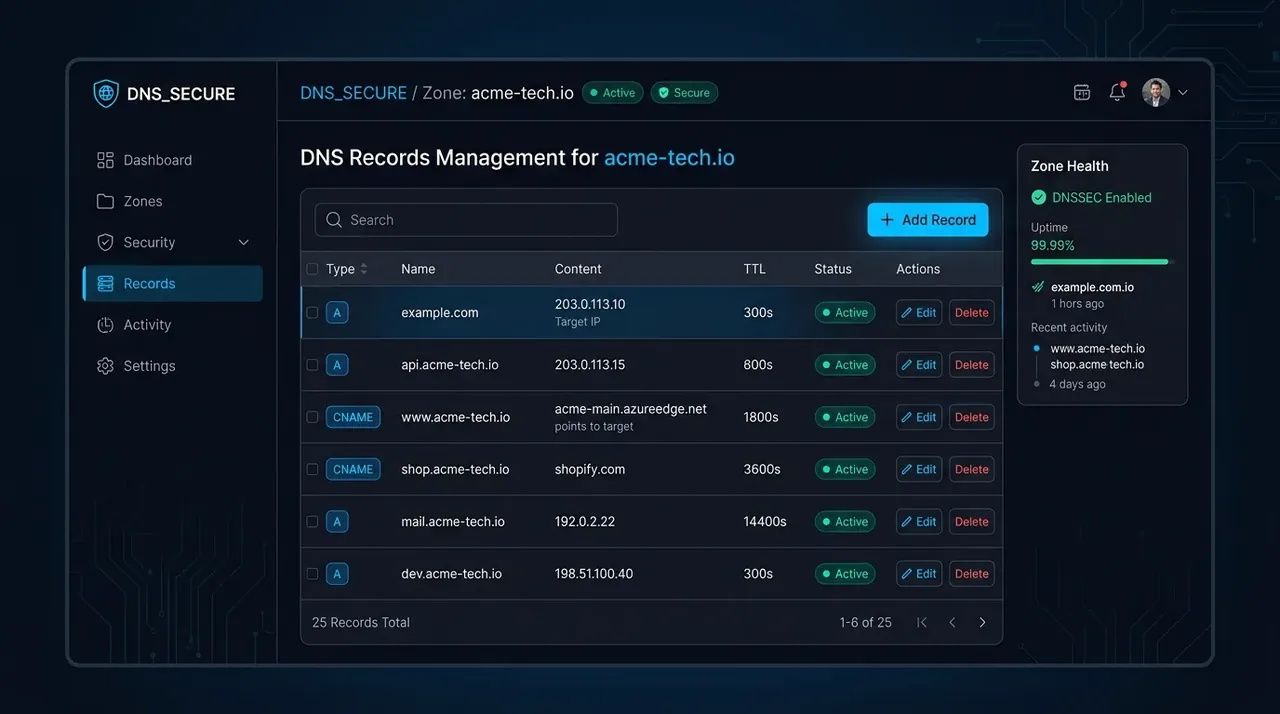
Quick tip: To check whether your domain has picked up the new IP, open CMD (Windows) and run ping yourdomain.com. If it returns your VPS IP, you are all set.
2. Method 1: Install WordPress on an aaPanel VPS Automatically (One-Click)
aaPanel ships with a One-Click Deployment app for WordPress, which lets you skip downloading files, extracting them and creating the database by hand. This is the recommended way for beginners to install WordPress on an aaPanel VPS.
Steps:
- Log in to the aaPanel dashboard. Go to App Store, then find and install the
One-click deploymentplugin (if it is not installed yet). - Open the Website menu on the left and click the green Add site button.
- In the window that opens, switch to the second tab, WordPress deploy.
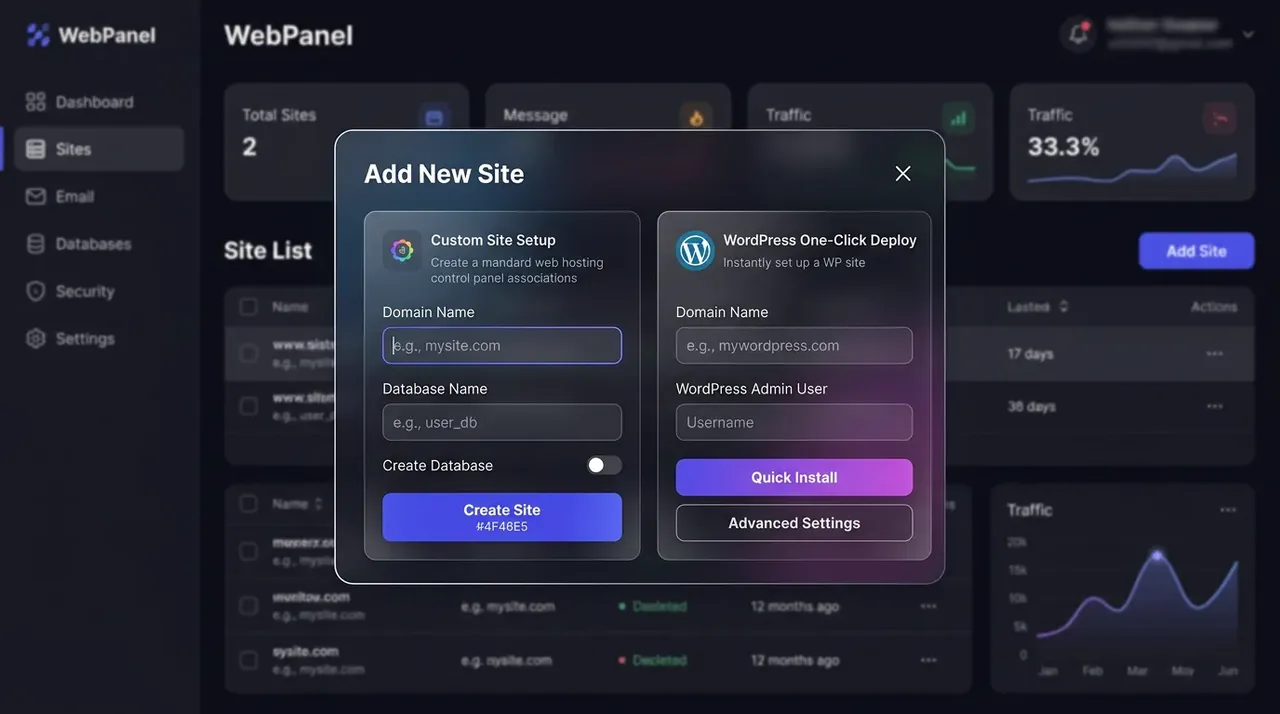
Fill in the following fields:
- Domain: Enter your main domain:
yourdomain.com. On a new line, also addwww.yourdomain.com(important so the SSL certificate covers both versions). - PHP version: The recommended choice is PHP 7.4 or 8.1.
- Database name & password: aaPanel generates random strings by default. We recommend keeping these complex values to make attacks harder.
- Admin account: Your WordPress login username (never use
admin). - Password: Your admin password.
Click Submit. aaPanel usually handles everything within about 20 seconds. Then just type your domain into a browser and your website should be up and running.
3. Method 2: Install WordPress on an aaPanel VPS Manually
Sometimes you want to use an older WordPress version, or you have a pre-packaged WordPress source (for example, an e-commerce bundle). In that case, installing WordPress on an aaPanel VPS has to be done manually.
Step 1: Create the Site Shell and Database
Go to Website -> Add Site. In the Create Site tab, enter your domain name. Under Database, choose MySQL. Under PHP, choose 8.1. Click Submit. An empty folder /www/wwwroot/yourdomain.com and a database will now be created.
Step 2: Use Remote Download
Go to the Files menu, open the folder /www/wwwroot/yourdomain.com and delete the default files (such as index.html and 404.html).
Click the Remote Download button in the top toolbar. Enter the link https://wordpress.org/latest.zip (English version) or https://vi.wordpress.org/latest-vi.zip (Vietnamese version). The VPS will usually download the zip file within a few seconds.
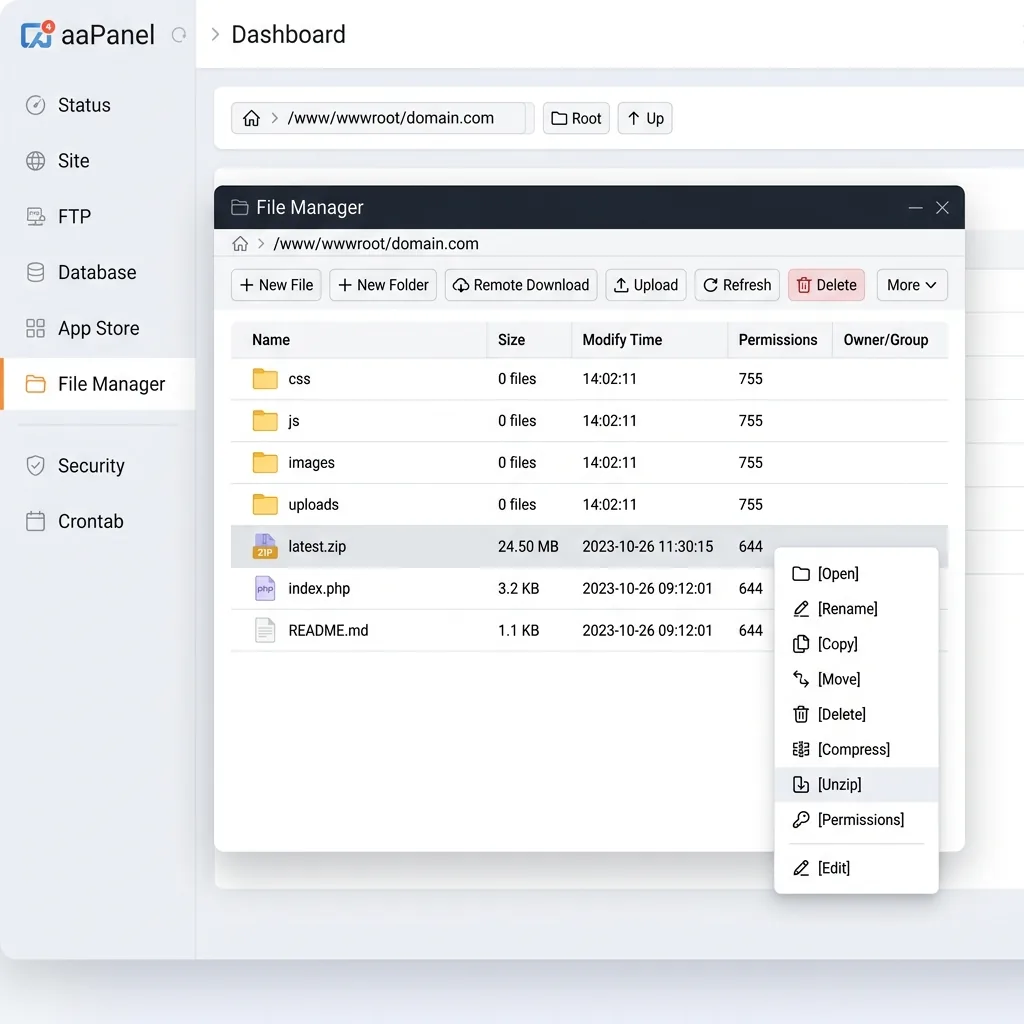
Step 3: Extract and Set Permissions (VERY IMPORTANT)
Right-click the latest.zip file and choose Unzip. Note: the archive extracts into a subfolder named wordpress. Open that subfolder, click Select All, then Cut everything and move it up into the root folder /www/wwwroot/yourdomain.com.
A note on file permissions: All WordPress files and folders must be owned by the www user, with folders set to 755 and files set to 644. aaPanel usually sets these permissions automatically, but if something goes wrong you can select all files -> Permission -> set Owner to www and 755.
Step 4: Run the Installer
Open your domain in a browser. The familiar WordPress installation screen will appear. Enter the database name, database user and password from Step 1, and you are done.
Did you know? Setting up your server and website correctly from the very first steps has a big impact on your site's security and speed later on. If you would rather have it done for you, TeamDevDesign offers a SEO-Friendly Website Design & VPS Optimization service that aims to keep your pages loading fast.
4. Post-Installation Optimization (Essential)
To keep WordPress running smoothly on aaPanel, carry out the following three optimizations:
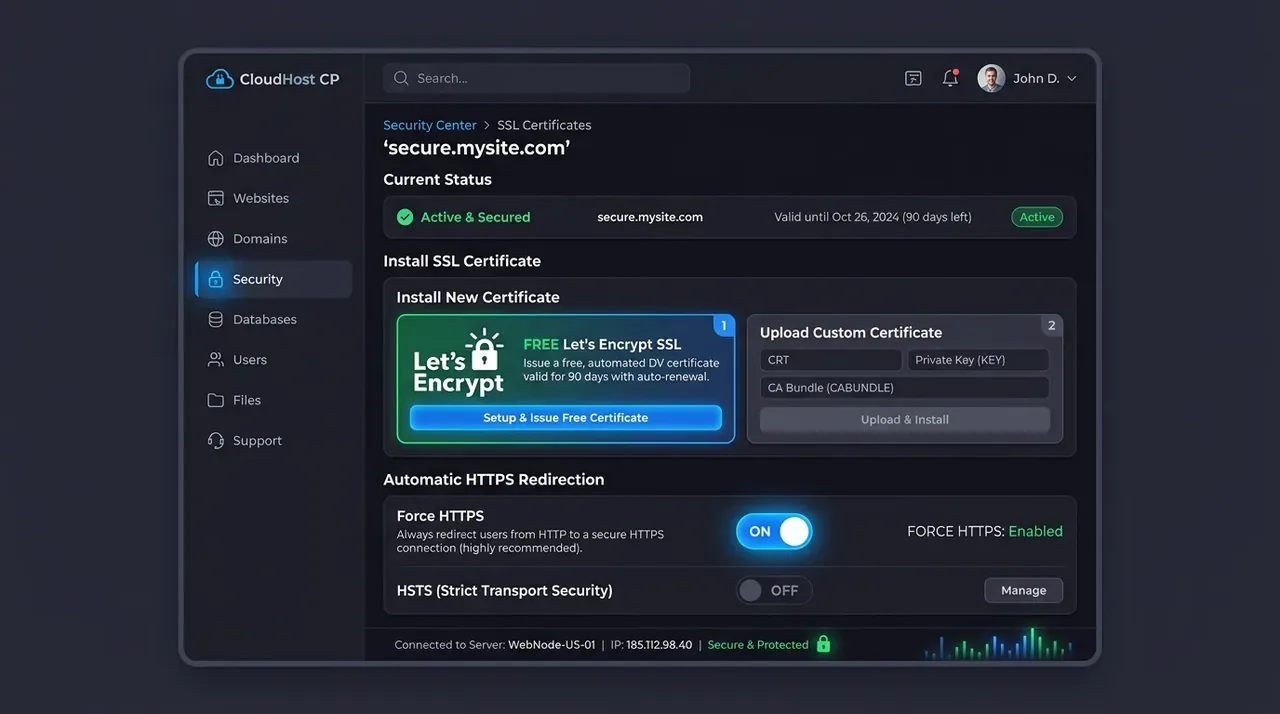
4.1. Enable Let's Encrypt SSL (Free)
- In the Website menu, click the Not Set button in the SSL column.
- Choose the Let's Encrypt sub-tab. Click Select All (tick both domain and www.domain).
- Click Apply.
- Once the green certificate appears, turn on the Force HTTPS toggle in the top-right corner to redirect HTTP to HTTPS.
4.2. Configure URL Rewrite (Pseudo-static) for Nginx
By default, Nginx does not understand WordPress permalinks (pretty URLs), which leads to 404 errors when viewing posts.
- In the website list, click your domain to open the Site Configuration panel.
- Choose the URL rewrite (Pseudo-static) tab.
- Open the dropdown and select wordpress. The standard configuration rules will appear. Click Save.
4.3. Increase the PHP Upload Limit
To upload a theme (such as Flatsome) or large backup files without hitting the upload_max_filesize error:
- Go to App Store, find PHP (e.g. PHP-8.1) and click Setting.
- Upload size tab: increase it to
100MBor500MB. - Configuration tab: raise
max_execution_timefrom 30 to300. - Go to the Service tab and click Restart.
5. Common Errors (Troubleshooting) and How to Fix Them
"Error establishing a database connection"
Cause: During a manual install, you entered the wrong details (Database Name, User, Password) in the wp-config.php file.
Fix: In aaPanel, open the Database menu. Check that the username and password match those in wp-config.php in the File Manager. If you forgot the database password, you can change it directly in aaPanel's Database panel.
502 Bad Gateway
Cause 1: PHP has crashed. Fix: Go to App Store -> PHP -> restart the PHP service.
Cause 2: The VPS has run out of memory (Out of Memory - OOM), for example because MySQL 8.0 is running on a 1GB RAM VPS or a plugin is too heavy. Fix: Check the CPU/RAM charts on the left. If RAM usage stays above 90%, set up a swap file with the Linux Tools plugin or upgrade to a 2GB RAM VPS plan.
WordPress asks for FTP credentials when installing plugins / uploading images
Cause: This is a classic file ownership problem. The WordPress folder is owned by the root user instead of the www user.
Fix: Open the File Manager and tick the checkbox to select all files. Click the Permission button in the top-right corner. In the Owner field, change root to www. Set permissions to 755. Tick Sub-directories (to apply to subfolders) and click OK.
Frequently Asked Questions (FAQ)
Nginx is usually the better choice. It tends to use RAM more efficiently and serves static files (images, CSS, JS) noticeably faster than Apache. On low-spec VPS plans in particular, Nginx generally handles concurrent connections well.
Go to the Database menu and you will see a phpMyAdmin button. To use it, you first need to install the phpMyAdmin plugin from the App Store and make sure port 888 (phpMyAdmin's default port) is open in the VPS firewall (Security).
Not by default. However, you can easily set up automatic backups in the Cron menu. Choose Backup Site and Backup Database, schedule them to run at 3 AM every day and keep the 7 most recent copies. You can also install the Google Drive app from the App Store to send backups straight to the cloud as an extra safeguard.
Use an SSH client (PuTTY) to log in to the VPS as root. Type the command bt and press Enter. Press 5 to set a new password right away, without affecting the websites that are running.
6. Conclusion
Running your site on a VPS with aaPanel can deliver strong performance, fast load times and a level of customization that shared hosting usually cannot offer. By following the A–Z process for installing WordPress on an aaPanel VPS and the optimizations covered above, you have built a solid foundation for your website.
If you are a business owner without an in-house IT team, take a look at the Website Maintenance & Management service from TeamDevDesign. It can help you monitor, back up and protect your system against common risks.
Contents
Related Posts
Hosting & VPS
Hosting vs VPS: Which Is Right for Your Business Website?
An in-depth comparison of shared hosting and VPS on performance, security, scalability and cost, to...

Hosting & VPS
How to Optimize Your VPS for a Fast WordPress Site
A practical guide to optimizing a VPS for WordPress: tune PHP-FPM, enable OPcache and Redis, and adj...

Hosting & VPS
Linux VPS Security: 16 Essential Steps for Beginners (2026)
A 16-step Linux VPS security checklist: SSH keys, a custom SSH port, disabling root, UFW, Fail2Ban,...