





Hi there! How can we help you today?
How to Set Up a Mail Server on aaPanel (2026 Guide)
-
Home
-
Hosting & VPS
-
How to Set Up a Mail Server on aaPanel: A–Z Guide (2026)
How to Set Up a Mail Server on aaPanel: A–Z Guide (2026)
Step-by-step guide to setting up a mail server on aaPanel: VPS prep, DNS (MX, SPF, DKIM, DMARC, PTR), RoundCube webmail, SSL, ports and avoiding spam.

Contents
Running a VPS with aaPanel and want email on your own domain, such as contact@yourcompany.com, without paying a monthly Google Workspace fee? In this guide, TeamDevDesign walks you through setting up a Mail Server on aaPanel from A to Z: preparing the VPS, configuring DNS (MX, SPF, DKIM, DMARC, PTR), installing RoundCube webmail, enabling SSL, sending test emails and fixing spam-folder issues. Follow the steps in order and you can have a professional email system running in roughly 30–45 minutes.
1. What Is a Mail Server on aaPanel? Should You Self-Host Email?
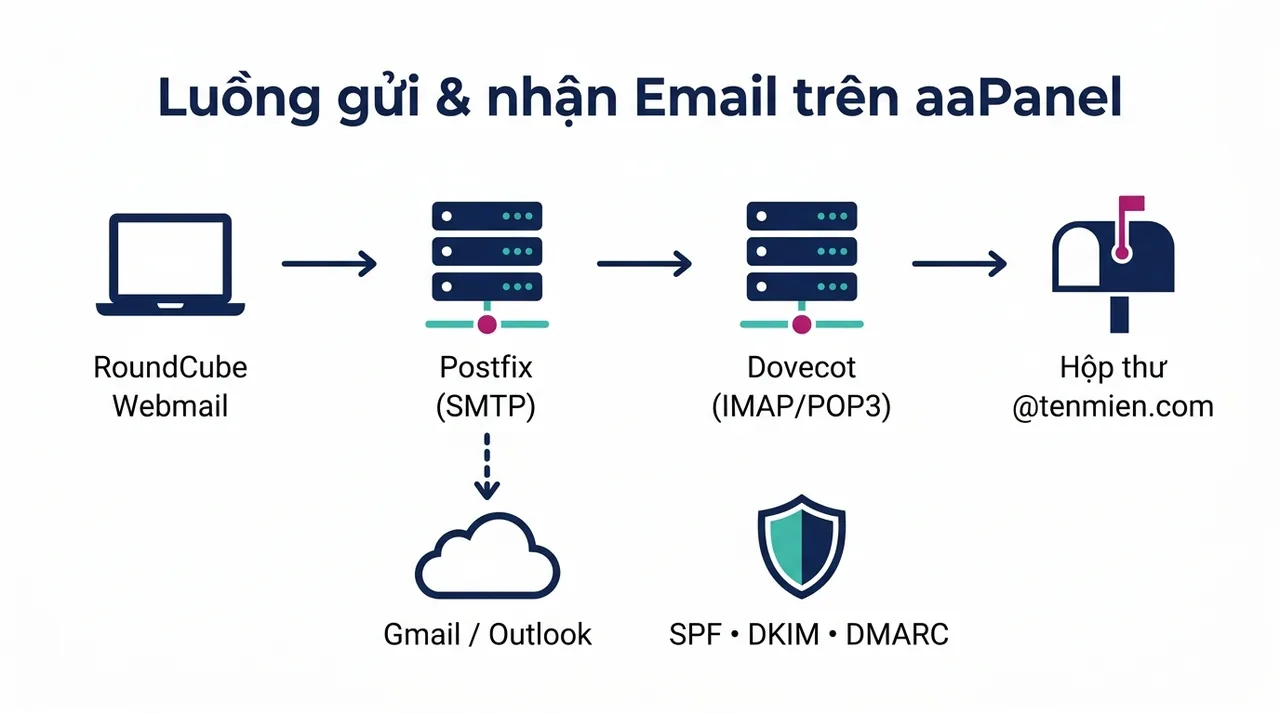
aaPanel is a free VPS control panel (the international edition of BT Panel). Unlike cPanel or DirectAdmin, which ship with email built in, aaPanel does not include a mail service by default – you need to install the Mail Server plugin from the App Store. The plugin bundles the standard components of an email system:
- Postfix (SMTP): sends and relays outgoing mail to the Internet.
- Dovecot (IMAP/POP3): stores mailboxes and lets mail clients (Outlook, Thunderbird, phones) read messages.
- Filtering & authentication: DKIM signing, SPF checks and spam protection.
- RoundCube Webmail: a browser interface for reading and sending mail, installed via One-Click Deployment.
When Does a Self-Hosted Mail Server on aaPanel Make Sense?
| Good fit when | Not a good fit when |
|---|---|
| You are a small business needing a few to a few dozen mailboxes on your domain | You need to send high-volume marketing email (thousands of messages per day) |
| You want to save costs and already have a VPS running your website | Your VPS provider blocks port 25 and will not unblock it |
| You want full control over your email data | Nobody is available to monitor and maintain the server regularly |
2. Preparation Before Installing
Most "can send but can't receive" or "mail lands in spam" problems come from skipping preparation. Go through this checklist before you start:
- A VPS with aaPanel installed, ideally with at least 2 GB of RAM, running Ubuntu 20.04/22.04 or Debian 11/12.
- Outbound port 25 not blocked: many providers (AWS, Google Cloud, Vultr, DigitalOcean…) block port 25 by default. Submit a support ticket to have it opened first.
- A domain name and access to edit its DNS (Cloudflare, your domain registrar…).
- A clean IP: make sure your VPS IP is not blacklisted using the MXToolbox Blacklist Check.
- The ability to set a PTR (Reverse DNS) record for the IP – usually done in your VPS control panel or by asking your provider.
To quickly check whether port 25 is blocked, SSH into the VPS and run:
nc -vz gmail-smtp-in.l.google.com 25If the result shows succeeded or open, you are good to go. If it shows timed out, contact your VPS provider before continuing.
3. Step 1 – Set the Hostname and Install Redis
aaPanel's Mail Server plugin checks the hostname and Redis before it lets you add a domain. Skip this step and you will get an error when clicking Add Domain.
Set the Server Hostname
The hostname should match the mail server name you plan to use (for example mail.yourdomain.com). SSH into the VPS and run:
hostnamectl set-hostname mail.yourdomain.com
hostname -f
Install Redis and Set a Password
- Go to the App Store, search for Redis and click Install.
- Once installed, open Redis → Performance tuning, enter a password in the
requirepassfield and save.
4. Step 2 – Install the Mail Server Plugin from the App Store
- Log in to aaPanel and open the App Store.
- Search for Mail Server (some versions show it as aaPanel Mail Server) and click Install.
- Wait for Postfix, Dovecot and related components to finish installing (about 3–10 minutes depending on your VPS).
When it is done, open the plugin and check the service status tab: Postfix and Dovecot should both show Running.
5. Step 3 – Add Your Domain and Configure DNS Records
In the Mail Server plugin, go to Domain List → Add Domain and enter:
- Domain Name: the domain used for email, e.g.
yourdomain.com. - A record: the mail server hostname, e.g.
mail.yourdomain.com.
After adding it, the DNS column will show Not Set. Click it and aaPanel will display the values for the records you need to create (MX, TXT/SPF, DKIM). Copy them and create the matching records wherever your domain's DNS is managed, following the table below:
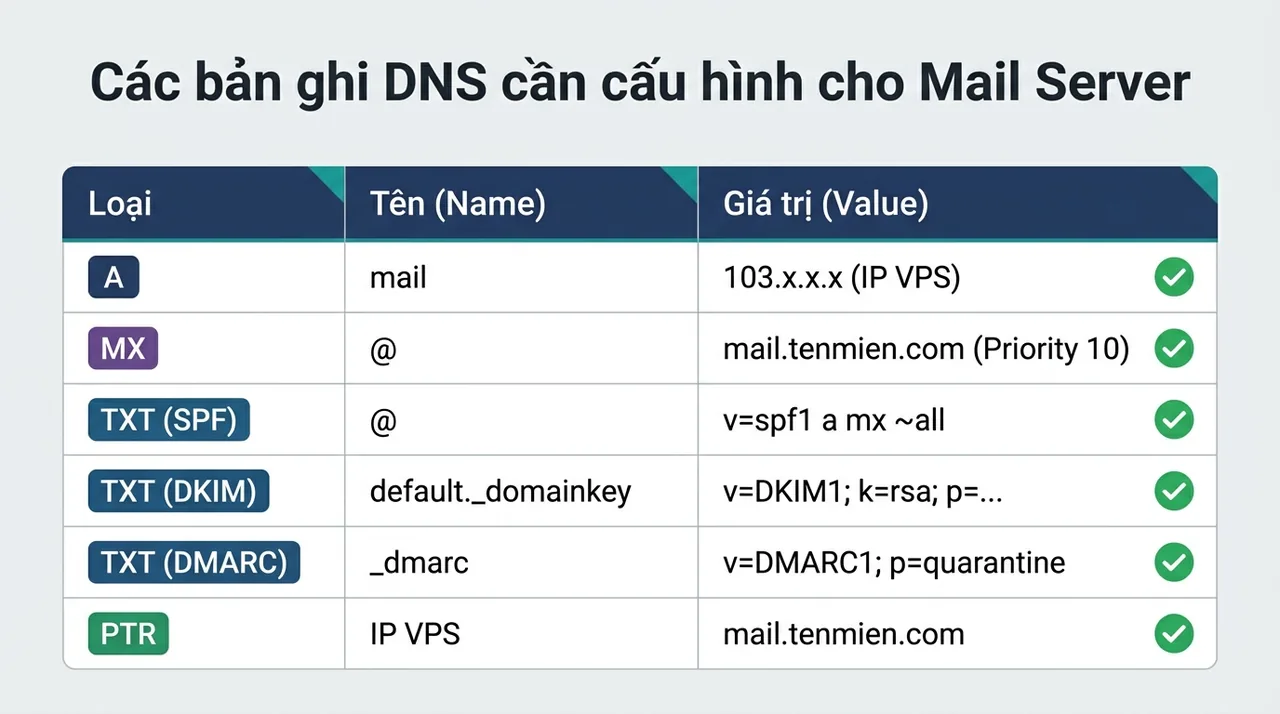
| Type | Name | Value | Purpose |
|---|---|---|---|
| A | Your VPS IP | Points the mail server hostname to the VPS | |
| MX | @ | mail.yourdomain.com (Priority 10) | Specifies where mail for the domain is received |
| TXT (SPF) | @ | v=spf1 a mx ip4:IP_VPS ~all | Authorizes the VPS to send mail on behalf of the domain |
| TXT (DKIM) | default._domainkey | Copy the exact value provided by aaPanel | Digitally signs mail to prevent spoofing |
| TXT (DMARC) | _dmarc | v=DMARC1; p=quarantine; rua=mailto:admin@yourdomain.com | Policy for handling mail that fails SPF/DKIM |
| PTR | Your VPS IP | mail.yourdomain.com | Reverse DNS – set at your VPS provider |
Note for Cloudflare users: the A record for mail must be set to DNS only (grey cloud). If the proxy is enabled (orange cloud), SMTP/IMAP connections will fail because Cloudflare does not proxy email ports.
DNS changes usually propagate within 5–30 minutes. Once everything is configured correctly, go back to aaPanel and re-check; each item should turn into a green tick ✅.
6. Step 4 – Install RoundCube Webmail
RoundCube lets you read and send mail right in the browser at an address like https://mail.yourdomain.com. In newer aaPanel versions, the Mail Server plugin has a WebMail section for one-click RoundCube installation. If your version does not have it, install it via One-Click Deployment:
- Go to App Store → One-Click Deployment (install the plugin if it is missing).
- Find RoundCube and click Install.
- Fill in the details:
- Domain:
mail.yourdomain.com– the webmail address. - Document root: the folder holding the RoundCube source code (keep the default).
- Database: aaPanel creates a database for RoundCube automatically.
- PHP Version: choose the PHP version recommended by the installer. If it is not available, install that PHP version from the App Store.
- Domain:
- Click Submit and wait for it to finish, then visit
http://mail.yourdomain.com– if you see the RoundCube login screen, it worked.
7. Step 5 – Enable SSL and Open Firewall Ports
Install a Free Let's Encrypt SSL Certificate
Email carries passwords and message content, so SSL is essential:
- For webmail: go to Website → mail.yourdomain.com → SSL → Let's Encrypt, issue a certificate and enable Force HTTPS.
- For SMTP/IMAP: in the Mail Server plugin, open the domain and use the SSL section to apply the certificate to
mail.yourdomain.com.
Open the Required Email Ports
Go to Security (Firewall) in aaPanel and make sure the following ports are open. If your VPS also has a firewall in the provider's dashboard (Security Group), open the same ports there:
| Port | Protocol | Purpose |
|---|---|---|
| 25 | SMTP | Receives mail from other servers and relays mail to the Internet |
| 465 | SMTPS (SSL) | Sending from mail clients, SSL encrypted |
| 587 | Submission (STARTTLS) | Sending from mail clients, STARTTLS encrypted |
| 993 / 143 | IMAPS / IMAP | Mailbox sync (993 recommended) |
| 995 / 110 | POP3S / POP3 | Downloading mail to a device (995 recommended) |
8. Step 6 – Create Email Accounts and Send a Test Message
In the Mail Server plugin, go to Users → Add User and enter:
- User type: General User.
- Name: the display name, e.g. "Sales Department".
- Email Address: e.g.
sales@yourdomain.com. - Password: a strong password of at least 12 characters with uppercase, lowercase, numbers and special characters.
- Mailbox space: mailbox quota (e.g. 5 GB).
Then visit https://mail.yourdomain.com, log in with the full email address and the password you just created, and send a message to your personal Gmail to test.
Score Your Email with Mail-Tester
Go to mail-tester.com, copy the random address it gives you, send a message to it and check the results. Aim for 9/10 – 10/10. The tool shows whether you are missing SPF, DKIM, DMARC or PTR so you can fix it.
Setting Up Outlook, Thunderbird and Phones
| Setting | Value |
|---|---|
| Incoming server (IMAP) | mail.yourdomain.com – port 993 – SSL/TLS |
| Outgoing server (SMTP) | mail.yourdomain.com – port 465 (SSL) or 587 (STARTTLS) |
| Username | Full email address, e.g. sales@yourdomain.com |
| SMTP authentication | On, using the same account as IMAP |
9. Common Mail Server Errors on aaPanel and How to Fix Them
Cannot Send Mail to External Addresses (Gmail, Outlook)
The most common cause is port 25 being blocked by the provider. Re-check with nc -vz gmail-smtp-in.l.google.com 25. If it is blocked, submit a ticket to have it opened, or configure an SMTP relay through a service such as Amazon SES, SendGrid or Brevo.
Outgoing Mail Lands in the Spam Folder
- Make sure all four records are in place: SPF, DKIM, DMARC and PTR; a missing PTR is one of the most common reasons Gmail marks mail as spam.
- The server hostname must match the PTR record and the A record of
mail.yourdomain.com. - For a new IP, "warm it up" by sending small volumes during the first 1–2 weeks and avoid bulk sending.
- In your message content, avoid all caps, too many links and overly promotional wording.
Error When Clicking Add Domain
This is usually because the hostname is not set, Redis is not installed, or the Redis password has not been set. Go back to Step 1, complete all three items and try again.
Cannot Access Webmail at mail.yourdomain.com
Check that the mail A record points to the correct VPS IP, the Cloudflare proxy is turned off, and the mail.yourdomain.com site has been created under Website in aaPanel.
10. Self-Hosted Email vs Google Workspace or Zoho Mail?
A self-hosted Mail Server on aaPanel saves money and keeps you in control of your data, but in return you are responsible for security, backups, IP reputation and server monitoring. If your business relies heavily on email to close deals and work with partners, a dedicated email service (Google Workspace, Zoho Mail, Microsoft 365) generally offers more reliable inbox delivery.
If you don't have time to configure it yourself, TeamDevDesign offers a Hosting – Domain – Business Email service and an all-in-one website & VPS maintenance and management service, so you can focus on running your business.
Frequently Asked Questions (FAQ)
No. aaPanel does not include an email service by default; you need to install the Mail Server plugin from the App Store, plus RoundCube if you want webmail.
It can run on 1 GB of RAM, but 2 GB of RAM or more is recommended if the VPS hosts both your website and email, for better stability.
Usually because the PTR, SPF, DKIM or DMARC record is missing, or the VPS IP has been blacklisted before. Use mail-tester.com to check and fix each item.
Yes. Just add an IMAP account in the Mail app on iPhone, the Gmail app on Android, or Outlook, using the settings in section 8.
Yes. In the Mail Server plugin, repeat the Add Domain step and configure DNS separately for each domain.
Conclusion
You have now set up a Mail Server on aaPanel end to end: preparing the VPS, setting the hostname, installing Mail Server, configuring DNS (MX, SPF, DKIM, DMARC, PTR), installing RoundCube Webmail, enabling SSL, opening ports and testing your sending score. Remember to back up your email data regularly and keep an eye on IP blacklists so the system keeps running smoothly.
If you need help with the setup or want a professional website with business email included, check out the business website design service or contact TeamDevDesign for a free consultation. Good luck!
Share this post:
Contents
Related Posts

Hosting & VPS
Hosting vs VPS: Which Is Right for Your Business Website?
An in-depth comparison of shared hosting and VPS on performance, security, scalability and cost, to...

Hosting & VPS
How to Optimize Your VPS for a Fast WordPress Site
A practical guide to optimizing a VPS for WordPress: tune PHP-FPM, enable OPcache and Redis, and adj...

Hosting & VPS
Linux VPS Security: 16 Essential Steps for Beginners (2026)
A 16-step Linux VPS security checklist: SSH keys, a custom SSH port, disabling root, UFW, Fail2Ban,...